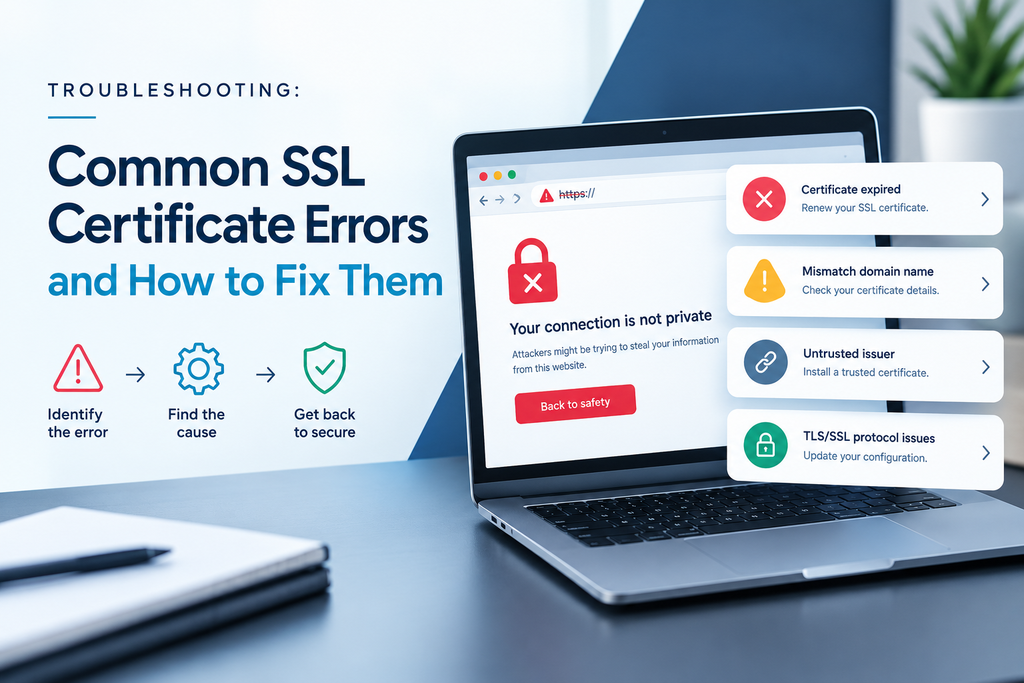
SSL certificate errors trigger security warnings that alarm site owners and visitors alike. Most people won’t click past one, which means lost traffic, lost sales and lost trust.
The good news is that most SSL certificate errors have simple causes and quick fixes. This guide explains what each common error means, why it happens and how to fix it. We’ll also show how FastSSLArena helps you resolve problems fast and avoid them in future.
Quick reference: SSL certificate errors at a glance
Error messages vary slightly by browser. The codes below are the ones Chrome shows.
| Error message | Likely cause | Quick fix |
| NET::ERR_CERT_DATE_INVALID | Certificate has expired | Renew and install a new certificate |
| NET::ERR_CERT_COMMON_NAME_INVALID | Domain doesn’t match the certificate | Get a certificate that covers the address |
| NET::ERR_CERT_AUTHORITY_INVALID | Untrusted, self-signed or incomplete chain | Install a trusted certificate and intermediates |
| Padlock missing or “Not secure” | Mixed content | Load all resources over https |
| ERR_SSL_VERSION_OR_CIPHER_MISMATCH | Outdated protocols or settings | Enable TLS 1.2 and TLS 1.3 |
| NET::ERR_CERT_REVOKED | Certificate was cancelled | Reissue the certificate |
| ERR_TOO_MANY_REDIRECTS | Redirect loop after enabling https | Correct your redirect settings |
| Private key mismatch (on install) | Certificate doesn’t match the key | Reissue with a new CSR |
1. Expired certificate
What you see: NET::ERR_CERT_DATE_INVALID or “Your connection is not private”, often with a mention of the date.
Why it happens: Your certificate has passed its expiry date. Less often, the visitor’s device clock is set to the wrong date.
How to fix it:
- Renew or buy a new certificate, then install it on every server that uses it.
- If only one visitor sees the error, ask them to check their device’s date and time.
- For a full walkthrough, see our guide to fixing an expired SSL certificate.
2. Name mismatch
What you see: NET::ERR_CERT_COMMON_NAME_INVALID or a message that the certificate is for a different site.
Why it happens: The address in the browser isn’t covered by your certificate. Common examples include a certificate for www.yourbusiness.co.za that doesn’t cover yourbusiness.co.za, or a subdomain that isn’t listed.
How to fix it:
- Check which names your certificate covers in its details.
- Reissue the certificate with the missing name, or redirect visitors to a covered address.
- If you use many subdomains, consider a wildcard certificate.
3. Untrusted or self-signed certificate
What you see: NET::ERR_CERT_AUTHORITY_INVALID, or SEC_ERROR_UNKNOWN_ISSUER in Firefox.
Why it happens: The browser doesn’t trust the CA that issued your certificate. This happens with self-signed certificates, certificates from distrusted CAs, or when the intermediate certificate is missing.
How to fix it:
- Replace self-signed certificates with one from a trusted CA.
- Install the full certificate chain, including intermediate certificates (see error 4).
4. Incomplete certificate chain
What you see: The site works on some browsers or devices but shows a trust error on others, especially older phones.
Why it happens: Your server isn’t sending the intermediate certificate that links your certificate to a trusted root. Learn more about the chain of trust.
How to fix it:
- Download the intermediate certificates from your provider and install them alongside your certificate.
- Run a free check with the Qualys SSL Labs test. It flags chain issues clearly.
5. Mixed content
What you see: The padlock is missing, shows a warning symbol, or the browser says the page is “Not fully secure”.
Why it happens: The page loads over https, but some images, scripts or stylesheets still load over http.
How to fix it:
- Open your browser’s developer tools and check the console for mixed content warnings.
- Update every http link to https in your website and content management system.
- Use a plugin or search-and-replace tool to update old links in bulk.
6. Outdated protocol or cipher
What you see: ERR_SSL_VERSION_OR_CIPHER_MISMATCH or a message that the site uses an unsupported protocol.
Why it happens: Your server only supports old, insecure versions of SSL or early TLS, or weak encryption settings that modern browsers reject.
How to fix it:
- Enable TLS 1.2 and TLS 1.3 on your server, and disable SSL, TLS 1.0 and TLS 1.1.
- Update your server software, or ask your hosting provider to do it.
7. Revoked certificate
What you see: NET::ERR_CERT_REVOKED.
Why it happens: The CA cancelled your certificate before its expiry date, usually because the private key was exposed or the certificate was reissued.
How to fix it:
- Generate a new CSR and private key, then reissue and install the certificate.
- If you reissued recently, make sure the new certificate is installed everywhere.
8. Too many redirects
What you see: ERR_TOO_MANY_REDIRECTS or “This page isn’t working”.
Why it happens: Your site keeps sending visitors between http and https in a loop. This often happens when a CDN, plugin and server each try to manage redirects.
How to fix it:
- Keep only one https redirect rule, ideally at the server or CDN level.
- If you use a CDN, set its SSL mode to full encryption between the CDN and your server.
- Clear your browser cache and test again.
9. Private key mismatch
What you see: Your server or hosting panel rejects the certificate during installation, saying it doesn’t match the private key.
Why it happens: The certificate was created from a different CSR than the private key on your server, often after a lost key or a new CSR.
How to fix it:
- Find the private key generated with the original CSR.
- If it’s lost, create a new CSR and key, then reissue the certificate.
When SSL certificate errors come from the visitor’s side
Sometimes your certificate is fine, and only one person sees an error. Common causes include:
- Wrong date or time on their device.
- Antivirus software that scans encrypted traffic.
- Public Wi-Fi login pages that interrupt secure connections.
- Very old browsers or operating systems that don’t support modern encryption.
If the error only affects one user, ask them to check these before changing anything on your server.
How to prevent SSL certificate errors
- Renew early. Start at least 30 days before expiry. Our SSL renewal guide shows you how.
- Choose the right coverage. Make sure every domain and subdomain is covered. See single-domain vs wildcard vs multi-domain SSL.
- Install the full chain. Always include intermediate certificates.
- Use modern settings. Keep TLS 1.2 and TLS 1.3 on, and older versions off.
- Keep your private key safe. Back it up securely when you generate it.
- Test after every change. Run an SSL scan after installing or renewing.
Frequently asked questions about SSL certificate errors
Is it safe to click “proceed anyway” on an SSL warning?
It’s not recommended. The warning means your connection may not be secure. Site owners should fix the error, so visitors never need to bypass it.
Why do only some devices show an SSL error?
Usually because the intermediate certificate is missing. Some browsers fill the gap, but others, especially older devices, can’t.
Why am I seeing an error after renewing my certificate?
The new certificate may not be installed on every server, the intermediate certificate may be missing, or your browser may be showing a cached page.
Do SSL certificate errors affect SEO?
Indirectly, yes. Visitors leave sites with warnings, and errors can make it harder for search engines to access your pages.
How can I tell which SSL error my site has?
Note the error code in the browser warning, then run a free scan with the Qualys SSL Labs test for a detailed report.
How FastSSLArena helps you fix and prevent SSL certificate errors
When a security warning appears, you need answers fast. FastSSLArena helps you get back to a working padlock and stay there.
- Troubleshooting support. Our team helps you identify the error and walks you through the fix.
- Quick reissues. Lost your private key or missed a domain? We’ll help you reissue your certificate fast.
- The right coverage from the start. We help you choose a certificate that covers every name you need, avoiding mismatch errors.
- Built-in CSR tool. Generate matching CSRs and private keys in a few clicks, so installations go smoothly.
- Installation help. Get support installing your certificate and full chain correctly.
- Easy renewals. Renew on time and avoid expiry errors altogether.
Don’t let SSL certificate errors cost you customers. Get trusted certificates and expert support at FastSSLArena today.